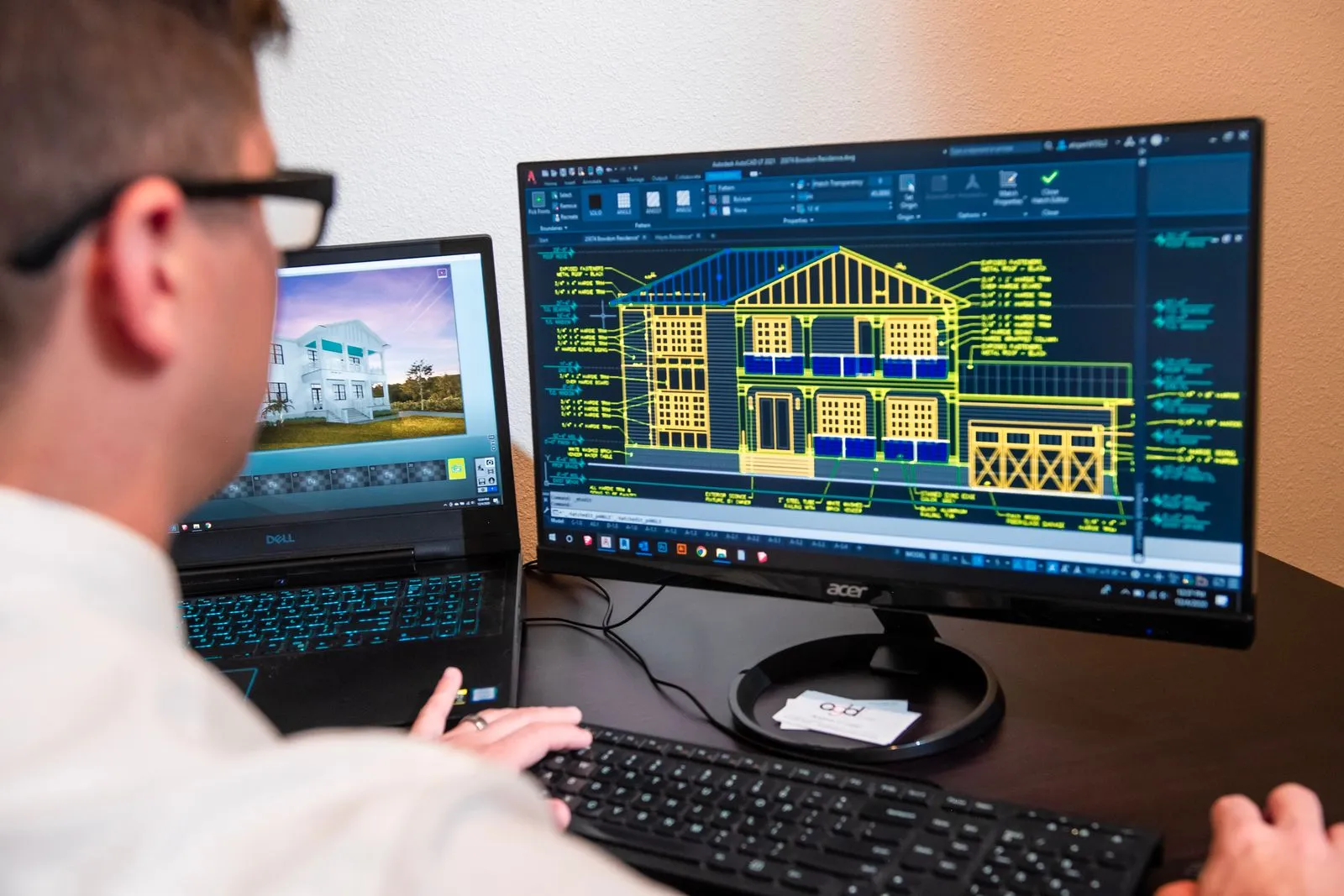
Lumion LiveSync is a free SketchUp extension that links your open SketchUp model to Lumion, so geometry, materials and the camera update in Lumion while you keep modeling. It runs on Windows only, and which build you need depends on your SketchUp and Lumion versions.
What LiveSync does
Once connected, Lumion imports your SketchUp model automatically. From then on, changes you make in SketchUp show up in Lumion without a manual export and re-import. Lumion’s documentation lists three things that stay in sync:
- Geometry: model edits appear in Lumion.
- Materials: including PBR materials and their parameters, which update in Lumion while LiveSync is active.
- Camera: the point of view in Lumion follows the SketchUp view.
The typical workflow is to model and set up materials in SketchUp, then dress the scene in Lumion with landscaping, lighting, entourage and effects. You can also apply Lumion’s own materials to the synced model.
Check compatibility first
Integrations change with each release, so match your versions before installing. This is the compatibility table on Lumion’s download page at the time of writing:
| SketchUp | Lumion | Method |
|---|---|---|
| 2026, 2025 | 2024.4.3 or newer | Current LiveSync build |
| 2025 | 2024.0 to 2024.4.3 | LiveSync 3.60.786 |
| 2024 | 2024.0 or newer | LiveSync or .SKP import |
| 2023 or newer | 2023.0 or newer | LiveSync or .SKP import |
Two more points from Lumion’s pages:
- LiveSync needs both programs running on the same Windows PC. It does not run on macOS.
- LiveSync also requires a Lumion edition that supports it. Lumion describes it as connecting to Lumion Pro, so check your edition on Lumion’s site if you are unsure.
If your versions fall outside the table, check the download page for the latest details. Lumion updates it as new SketchUp releases arrive.
Install LiveSync in SketchUp
- Close Lumion if you like, but keep SketchUp open or restart it after installing.
- Open the Extension Manager in SketchUp and search for “Lumion LiveSync”, or open the Extension Warehouse listing and install from there.
- Alternatively, download the .rbz file from Lumion’s support site and install it through the Extension Manager’s install-from-file option.
- Restart SketchUp if the toolbar does not appear. Lumion says the LiveSync toolbar appears after installation.
The listing is titled “Lumion View & LiveSync”. The LiveSync installer installs LiveSync only.
Start your first sync
- Open your model in SketchUp.
- Open Lumion and start or open a project.
- In SketchUp, click Start LiveSync on the LiveSync toolbar.
- Lumion imports the model automatically. Orbit in SketchUp and watch the Lumion camera follow.
- Make an edit, such as moving a wall or changing a material, and check that it appears in Lumion.
Before you start, follow Lumion’s SketchUp import guidelines:
- Keep the model near the origin (0,0,0). If the model seems to be missing in Lumion, check its scale and position. Lumion suggests resetting the axes (right-click the blue axis and choose Reset) if the model is invisible.
- Fix flipped or invisible faces. Lumion suggests exploding groups and components repeatedly until Explode is no longer available. Doing that flattens your nesting, so do it on a copy of the model.
- Give surfaces separate materials if you want to treat them separately. Lumion merges surfaces that share a SketchUp material. To apply different Lumion materials to two surfaces, give them different materials in SketchUp first.
- Enable edges support if you want edge lines. Lumion lists an edges option in the LiveSync settings.
Save and reopen your project
The sync is a live session, not a permanent link you can ignore. Lumion notes that you should save the project so you can render or continue later. Reopening is where most trouble starts.
Lumion identifies the model by its file name and location. When you reopen a Lumion project:
- Same name and location: click Start LiveSync in SketchUp and the connection resumes.
- Similar name (five or more consecutive matching characters) in the same location: Lumion offers a Re-connect to LiveSync button in the Object Options panel.
- Different name or location: export a .DAE from SketchUp using the original name and location, re-import it in Lumion, then reconnect.
The practical rule: settle on a file name and folder before you build the Lumion scene, and don’t use “Save As” for versions of the model once you’ve started. Keep versions in a separate archive folder instead.
Practical tips
- Work in Lumion on top of the model, not inside it. Lumion’s page doesn’t say what happens to edits made in Lumion when the SketchUp model changes, so test on a small change before a major revision. Landscaping and lighting placed around the model are the safest bet.
- Name materials clearly in SketchUp. Names carry over into Lumion’s material list, so “Oak_floor” is easier to find than “Material 14”.
- Keep the model light. Purge unused components and materials in SketchUp before syncing. A slimmer model syncs faster and leaves more memory for Lumion’s scene.
- Use scenes to frame your shots. Because the camera follows SketchUp, you can position a view there and then save it in Lumion.
Troubleshooting
| Problem | Try this |
|---|---|
| No LiveSync toolbar | Restart SketchUp and confirm the extension is enabled in the Extension Manager. Check your SketchUp version against the table above. |
| Model not visible in Lumion | Check that the model sits near the origin and is at the correct scale. Reset axes if needed. |
| Missing edges | Turn on edges support in the LiveSync settings. |
| Faces look wrong or transparent | Fix flipped faces in SketchUp and re-sync. |
| Connection won’t resume | Check the file name and location match the original. Use Re-connect to LiveSync or re-import a .DAE. |
| Newer SketchUp features not shown | Lumion warns that features newer than your Lumion version may not appear. Update Lumion or simplify the feature. |
LiveSync or a one-time .SKP import?
For a model that is still changing, LiveSync saves you repeated imports. For a finished model, a plain .SKP import is simpler and avoids reconnection issues. Lumion lists .SKP import as an option for SketchUp 2024 and earlier in its table.
FAQ
Is Lumion LiveSync free for SketchUp?
The extension itself is free to install. You still need a Lumion license that supports LiveSync.
Does Lumion LiveSync work on Mac?
No. Lumion’s documentation says LiveSync and model import are Windows-only, and both programs must run on the same PC.
Which SketchUp versions does LiveSync support?
It depends on your Lumion version. Lumion’s table lists SketchUp 2026 and 2025 with Lumion 2024.4.3 or newer, and older builds for earlier versions. Check the current download page before installing.
Why did my LiveSync connection break after I renamed the file?
Lumion matches models by file name and location. Restore the original name, use the Re-connect to LiveSync button if the name is similar, or re-import a .DAE with the original name.