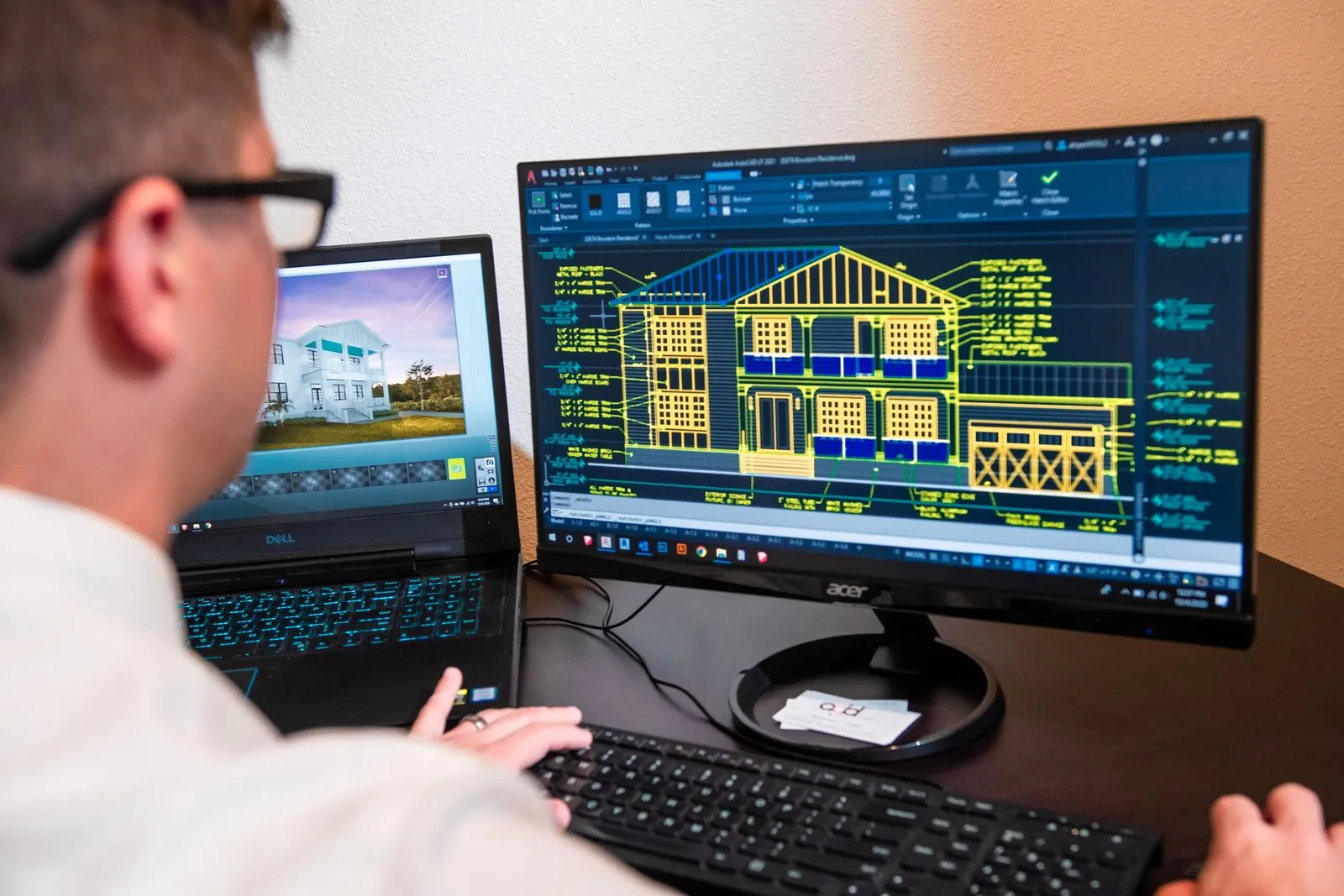
Both Lumion and Twinmotion turn a SketchUp model into a polished still, video or walkthrough without a render-farm mindset. The short version: Lumion is the stronger choice if you want a big built-in library and a Windows-only, SketchUp-friendly LiveSync workflow, while Twinmotion is the one to look at first if your budget is tight, because Epic offers it free below a revenue threshold.
“It depends” is the honest answer here, so this article lays out what it depends on: how the model gets across, how live the link is, what you get in the box, what it costs, and how fast you will be productive.
Getting a SketchUp model across
Lumion
Lumion gives you two routes. The first is the LiveSync plugin, which links SketchUp to Lumion in real time. The second is a direct .skp import. According to Lumion’s import guidelines, LiveSync supports SketchUp 2021 and newer, and direct import can silently skip features from SketchUp versions newer than the import API supports. LiveSync does not have that problem, so it is the safer path for recent SketchUp releases. If you have not set it up yet, see our Lumion LiveSync setup and workflow guide.
Lumion’s support pages say LiveSync and model import are Windows applications, with no Mac option.
Twinmotion
Twinmotion uses Epic’s Datasmith. Epic’s documentation describes two workflows:
- File import: export a
.udatasmithfile plus its folder of material assets, then import both into Twinmotion. If you re-export after a design change, your Twinmotion edits are reapplied. - Direct Link: a live connection between the design application and Twinmotion, with Auto Sync in real time or on demand.
Twinmotion can also import SketchUp files directly. For SketchUp, the Datasmith Exporter is a plugin you install separately, and it has lagged behind SketchUp releases before. A SketchUp Forums thread from November 2025 shows users hitting a “no supported SketchUp version” error on SketchUp 2026, plus reports of sync that stopped after a few updates. That is user reporting, not an official statement, but it is a reason to check Epic’s plugin page for your exact SketchUp version before you commit. I could not confirm support for SketchUp 2027 at the time of writing.
Live sync: how live is it?
Both tools do the same basic job: you keep modeling in SketchUp and the changes show up in the visualization app. Lumion’s page says LiveSync carries over lights and material settings, and that it needs a Pro plan or the free 14-day trial. Twinmotion’s Direct Link is included with the app, but it depends on the exporter plugin being current for your SketchUp version, which is the part that has caused friction.
Either way, a few modeling habits make sync less painful:
- Keep your groups and components tidy. Repeated components are lighter to carry across than copies of exploded geometry.
- Give every surface that needs its own look a unique SketchUp material. Lumion merges surfaces that share a material, so a shared material means you cannot treat them separately.
- Keep the model near the origin and check scale before the first sync.
- If faces look flipped or vanish, fix them in SketchUp first. Our guide to reversed faces covers it.
Visual quality
I haven’t benchmarked either one, so I won’t give you a scoreboard. Both produce convincing architectural stills and animations, and both lean on real-time rendering rather than a physically exhaustive render engine. Lighting does most of the work in either: a good sun angle and a few interior lights beat any asset pack. Pick based on how each one handles your project in a trial, not on a gallery of other people’s best work.
For physically based, render-engine accuracy, you are in V-Ray or Enscape territory instead. See Lumion vs Enscape for SketchUp users for that comparison.
Assets and content
Lumion’s site advertises over 10,000 built-in assets covering nature, objects, entourage and customizable PBR materials. That is a real time-saver on landscape-heavy and exterior scenes. Twinmotion also ships with its own library of vegetation, people, vehicles and materials, and its tight link to Epic’s wider ecosystem is a draw if you want to move on to game-engine tools later. I did not verify Twinmotion’s current asset counts, so check the in-app library during a trial.
Pricing and licensing
Treat any price in a blog post, including this one, as a starting point. Check the vendor’s page on the day you buy.
| Lumion | Twinmotion | |
|---|---|---|
| Model | Paid plans (View and Pro tiers), with a discount for 3-year plans per Lumion’s page | Free for eligible users, paid seat above the threshold |
| Free access | 14-day trial; Pro free for students and educators | Free for students, educators, hobbyists and companies under US$1M annual gross revenue, per Epic’s current terms as discussed on the SketchUp Forums |
| SketchUp live link | LiveSync (Pro plan or trial) | Datasmith Direct Link (exporter plugin) |
| Platform | Windows | Check Epic’s current system requirements for macOS |
| Library | 10,000+ assets | Built-in library, count not verified |
The pricing split is the biggest practical difference. A freelancer or small studio under the revenue threshold can run Twinmotion at no cost, while a Lumion Pro subscription is a real annual line item. A larger firm above the threshold pays for both, and then the decision comes back to workflow, not price.
Learning curve
Both are built for people who are not rendering specialists. Lumion is generally described as quick to pick up: place, adjust, press render. Twinmotion has a similar philosophy and adds a more game-engine-flavored interface. Realistically, expect a day or two to feel comfortable with either, and longer to get consistently good output. The skill that transfers is lighting and composition, not button locations.
If your SketchUp file is heavy, fix it before blaming the renderer. Why is my SketchUp model so slow has the usual culprits.
Settings I’d start with
| Setting | Starting value | Why |
|---|---|---|
| Sync method | Live link (LiveSync or Direct Link), not one-off import | Keeps design changes flowing without re-importing |
| Model position | Near the SketchUp origin | Avoids positioning and precision problems |
| Edges | Off for realistic output, on for stylized | Both tools let you toggle edge display on import |
| Materials | One unique SketchUp material per surface you will restyle | Prevents surfaces being merged |
| Lighting | Sun first, then interior lights | Lighting before materials |
| Trial render | One still from your own model | Tests the sync and quality on your project |
Who should pick which
- Pick Lumion if you are on Windows, want the biggest built-in library, and your SketchUp version is covered by LiveSync. It suits exterior-heavy work and people who prefer a paid product with a consistent plugin.
- Pick Twinmotion if you qualify for the free license, need to keep software costs near zero, or want a path into the wider Epic toolset. Verify the SketchUp exporter works with your version first.
- Try both if you are unsure. Lumion has a free trial and Twinmotion is free to download for eligible users. Use the same SketchUp file in each.
FAQ
Is Twinmotion really free?
For eligible users, yes. Epic’s terms, as discussed on the SketchUp Forums, cover students, educators, hobbyists and companies under US$1 million in annual gross revenue. Confirm current terms on Epic’s site, as they have changed before.
Does Lumion work on a Mac?
Lumion’s support pages say LiveSync and model import are Windows-based and cannot run on a Mac.
Can Lumion or Twinmotion update when I change my SketchUp model?
Yes. Lumion uses LiveSync, and Twinmotion uses Datasmith Direct Link or a re-export of the .udatasmith file. Edits you make in Twinmotion are reapplied on re-import, according to Epic’s documentation.
Which is better for SketchUp beginners?
Neither has a steep curve. Choose on budget and platform first, then on which interface you like after a trial.