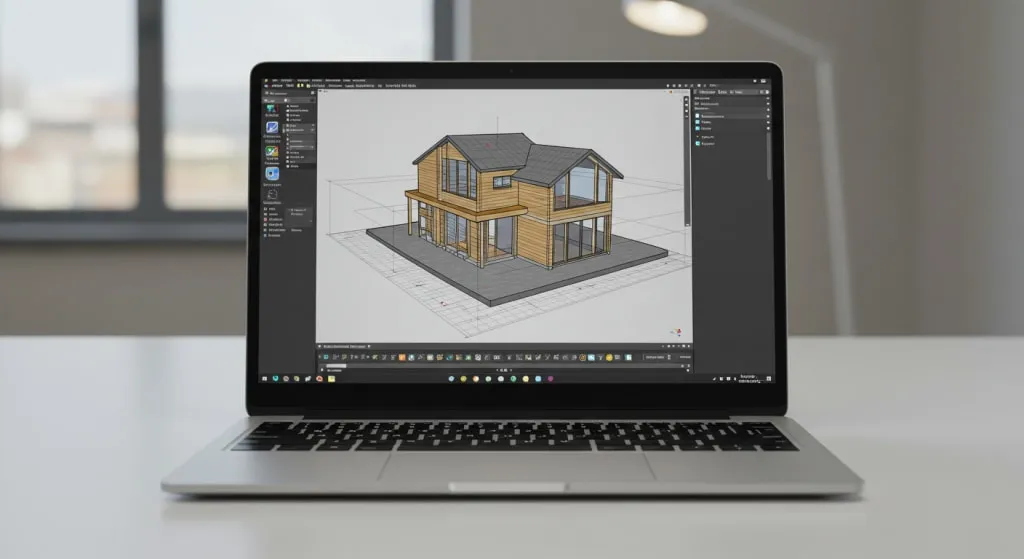
3D Warehouse is Trimble’s free online library of SketchUp models — furniture, fixtures, people, vehicles, trees and a huge range of manufacturer products. It can save hours on every project, but it’s also the fastest way to turn a snappy model into a sluggish one. Here’s how to use it well.
Two ways to get models
From inside SketchUp. Open the 3D Warehouse panel (in SketchUp Pro it’s under the Window menu or the Warehouse toolbar). Search, click a result, and choose to load it directly into your model. The model arrives as a component attached to your cursor.
From the website. Go to 3dwarehouse.sketchup.com, sign in with your Trimble ID, and download the .skp file. This is handy when you want to inspect a model first, or save a personal library of go-to assets on disk.
Downloads are free, but you need a Trimble account.
How to find good models fast
Quality on 3D Warehouse ranges from manufacturer-grade to “someone’s first afternoon in SketchUp.” A few filters sort that out quickly:
- Prefer verified manufacturer and catalog models. Many brands publish accurate, correctly dimensioned products. Look for the brand or catalog name on the model page.
- Check the file size before downloading. A dining chair should not be 40 MB. The model page shows file size — treat anything unusually large for the object as a red flag.
- Look at the model details and preview. Rotate the 3D preview on the website. Check for missing faces, strange proportions and oversized detail like modeled stitching or screw threads you’ll never see.
- Search with specific terms. “Eames lounge chair” beats “chair”; add a brand or style word to cut the noise.
- Use collections. Curated collections (from manufacturers or trusted modelers) are usually more consistent than single uploads.
Clean up every model before you keep it
A 60-second check after import prevents most performance problems.
1. Open it in a separate file first
Download into a blank model, inspect it there, and only copy it into your project once it’s clean. That keeps junk materials, tags and styles out of your main file.
2. Check the polygon count
Open Window → Model Info → Statistics to see how many edges and faces the model contains. Decorative objects like plants and lamps with hundreds of thousands of faces are the usual culprits of slow orbiting. If a background object is heavy, find a lighter alternative or simplify it.
3. Check scale and axes
Measure a known dimension with the Tape Measure tool. A seat height should be roughly 450 mm (18 in), a door around 2,000–2,100 mm (about 80 in). Also check the component axes sit at a sensible insertion point, usually bottom-center or a back corner.
4. Tidy tags and materials
Imported models often bring their own tags (layers) and oddly named materials. Delete or reassign the tags you don’t need, and rename or replace materials so they fit your project library.
5. Purge what you don’t use
In Model Info → Statistics, use Purge Unused to remove components, materials, styles and tags that are no longer referenced. Run it again at the end of the project — it’s one of the easiest ways to cut file size.
Licensing: can you use models commercially?
Models on 3D Warehouse are covered by the 3D Warehouse terms of use, and many are fine to use in client work and renderings. But terms can change and individual uploads can include content the uploader didn’t have rights to — trademarked logos, for example. Read the current terms on the 3D Warehouse site and be cautious about reselling or redistributing someone else’s model as your own.
Performance tips for big projects
- Use low-detail proxies while you model. Swap in the detailed version only for final renders. Most rendering extensions support proxies for heavy assets like trees.
- Put heavy entourage on its own tag so you can hide it while working.
- Reuse one component instead of importing the same object several times; the file stores its geometry once.
- Avoid exploding downloaded components. Keeping them as components keeps the file small and lets you swap them later.
Uploading your own models
If you’ve built something useful, you can upload it to share with the community. Good uploads have a clear name, sensible axes, real-world scale, purged materials and a reasonable polygon count — exactly the things you look for when downloading.
FAQ
Is 3D Warehouse free?
Yes. Browsing and downloading are free; you need a Trimble ID to download.
Can I use 3D Warehouse without SketchUp Pro?
Yes. You can download .skp files from the website, and SketchUp’s web and desktop apps can open them.
Why is my model so slow after adding 3D Warehouse furniture?
Usually high-polygon models. Check Model Info → Statistics for face count, replace the heaviest objects with lighter versions, and purge unused items.
Is SketchUp Warehouse the same as 3D Warehouse?
No. SketchUp Warehouse (this site) is an independent publication with tutorials and news. The official model library is 3D Warehouse at 3dwarehouse.sketchup.com.