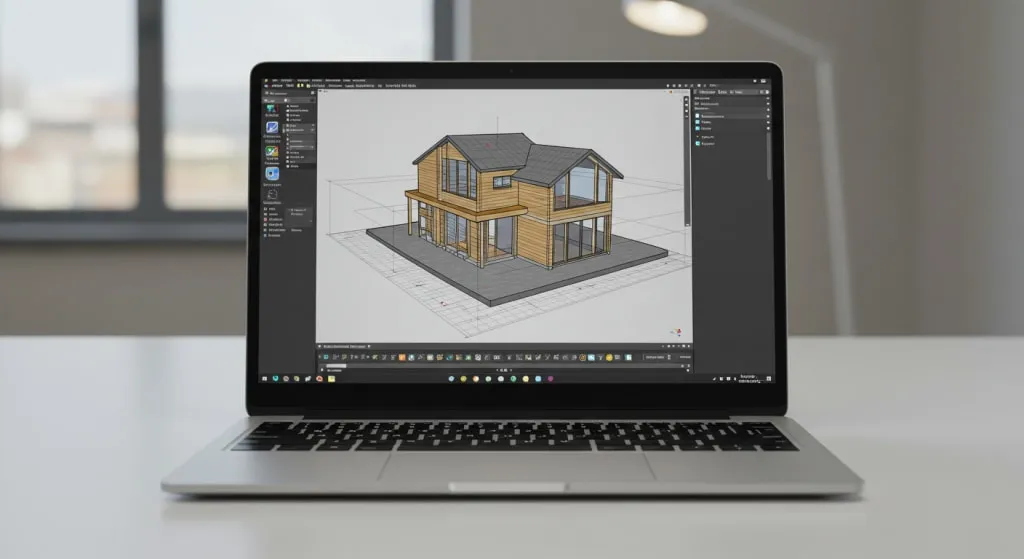
If you are using tags to hold your model together, or tagging loose edges and faces one by one, you are working harder than you need to. Tags control what you see, not how geometry is built. Group first, tag the groups, and use folders to keep the list short.
SketchUp’s tags are what older versions called layers. The help center says they provide the same functionality “and more,” so everything you knew about layers still applies under the new name.
Tags vs groups: two different jobs
This is the confusion behind most messy models.
- Groups and components hold geometry together so it does not stick to other geometry. They also form the structure you see in the Outliner.
- Tags switch the visibility of many objects at once. They do not stop geometry from sticking.
SketchUp’s own help notes that tagging works best on groups and components, though you can tag individual faces and edges. Tagging raw geometry is where models go wrong: hide that tag and the geometry disappears, but the edges are still fused to everything around them. If the difference is fuzzy, read groups vs components first.
The rule: group for structure, tag for visibility.
Open the Tags panel
Find it in the default tray, or choose Window > Default Tray to show the tray. The panel includes:
- Add Tag and Add Tag Folder buttons.
- A Filter search bar for finding tags or folders in a long list.
- The Tag tool button.
- Color by Tag, which recolors objects to the tag’s assigned color so you can check your work.
- A Details menu with Expand All, Collapse All, Select All, Delete Tag, Explode Tag Folder, Purge Unused, Select All Tagged and Apply Tags to Scenes.
- A Dashes column, covered below.
New geometry starts as Untagged. Each new tag gets a random solid color, which you can change in the Edit Material dialog.
Create and apply tags
- Click Add Tag and type a clear name. Names are how you will find things later.
- Select the tag in the panel. The Tag tool only works when a single tag is selected, not several tags or a folder.
- Choose the Tag tool and click a group or component. It flashes purple to confirm.
The Tag tool has three modifier modes, per the Help Center:
| Mode | Windows | Mac | What it does |
|---|---|---|---|
| Sample | Alt | Command | Makes the clicked object’s tag the selected tag |
| Replace All | Shift | Shift | Swaps the tag on every entity sharing the clicked object’s tag |
| Tag All Instances | Ctrl | Option | Tags every instance of a component |
You can also select objects in the model and click the tag name to assign them, but the Tag tool is the route the help page documents, so use it if you want certainty.
If you tag the same objects often, a custom shortcut helps; see SketchUp keyboard shortcuts.
Use tag folders to stay sane
Folders collect related tags so a model with dozens of tags stays readable. They also manage visibility for everything inside them with one click.
- Click Add Tag Folder. If tags are selected when you click, they move into the new folder.
- Name the folder. An unnamed folder gets an automatic number.
- To add a tag directly into a folder, select the folder, then click Add Tag.
- To move existing tags, select one or more and drag them in.
Hold Ctrl (Windows) or Command (Mac) to select several tags or folders and toggle their eye icons together.
Tag folders are a newer feature; a forum reply notes they did not exist before SketchUp 2021. If you work in an older version, you will only have a flat list.
A folder structure that scales
There is no official standard. This is a simple, opinionated starting point:
- 01 Architecture – Walls, Floors, Roof, Windows, Doors
- 02 Interior – Furniture, Lighting, Fixtures
- 03 Site – Terrain, Paving, Planting
- 04 Annotation – Dimensions, Text, Section planes
Numeric prefixes keep the list in a predictable order, since the panel can sort by Name.
Dashed tags
Tags can draw their edges as dashes, which is useful for hidden structure, overhead elements or property lines.
- In the Tags panel, click Default in the Dashes column for the tag.
- Pick a dash style from the menu.
Any geometry on that tag now shows dashed lines. Note that the tag’s eye icon hides the edges and their dashes together. To hide only the dashes, use the Dashes option in Edge Settings in the Styles panel. The help page doesn’t state a version requirement for dashes, so check that the column appears in your version.
For printed output, the help recommends LayOut for accuracy and control. Dashes can also be exported to PDF and EPS (vector), common raster formats, and DWG and DXF. Imported CAD dashes are matched to the closest available pattern, and a line style with no close match appears solid.
Best-practice workflow
- Plan the tag list before modeling. Ten well-named tags beat sixty improvised ones.
- Leave geometry Untagged inside groups. Tag the group or component that contains it.
- Group early. Make each wall, floor or piece of furniture an object before you tag it.
- Tag as you go. Retagging 400 objects at the end is the chore that makes people give up on tags.
- Use Color by Tag to audit. Anything still the default color is probably untagged.
- Save visibility in scenes. Set the tags you want visible, then update the scene. The Details menu also offers Apply Tags to Scenes.
- Clean up. Use Purge Unused in the Details menu to remove tags nothing uses.
Hiding tags also makes geometry easier to work on and may improve performance. See why your model is slow for more.
Where it goes wrong
- Geometry tagged “Wall” but ungrouped. Hiding it leaves ragged holes and sticky edges. Fix: select the geometry, make it a group, and tag the group.
- A hidden tag with nothing visibly changing. Items in a hidden tag may be nested inside a group on a visible tag, or the group, not its contents, carries the tag. Check the Outliner to find which level carries the tag.
- Too many tags. If you cannot find anything, you have probably tagged by object rather than by purpose. Merge tags with Replace All (Shift with the Tag tool), then use Purge Unused.
SketchUp Shop and Free differ
In SketchUp for Web editions such as Shop, a forum post says the newer tag interface drops the Untagged tag and the idea of an active tag. A Master Visibility toggle shows Untagged objects instead. If instructions here do not match your screen, check your edition.
Practice drill
Five minutes:
- Draw a box, then make it a group. Copy it twice and rename the groups Wall, Floor and Roof (right-click, Entity Info).
- Add three tags with matching names, then a folder called “01 Architecture” and drag them in.
- Use the Tag tool to apply each tag to its group.
- Toggle the folder’s eye on and off. Turn on Color by Tag.
- Give Roof a dashed style in the Dashes column. Purge Unused when done.
FAQ
Are SketchUp tags the same as layers?
Yes. SketchUp renamed layers to tags. The help center says tags give the same functionality and more.
Can I put tags inside other tags?
Not as nested tags. Use tag folders to organize them. Folders hold tags and let you control visibility for all of them at once.
Why does hiding a tag not hide my object?
The object may not carry that tag, or a parent group carries a different one. Select it and check Entity Info, or open the Outliner.
What does Purge Unused do?
It removes every tag that is not assigned to any entity, from the Details menu in the Tags panel.