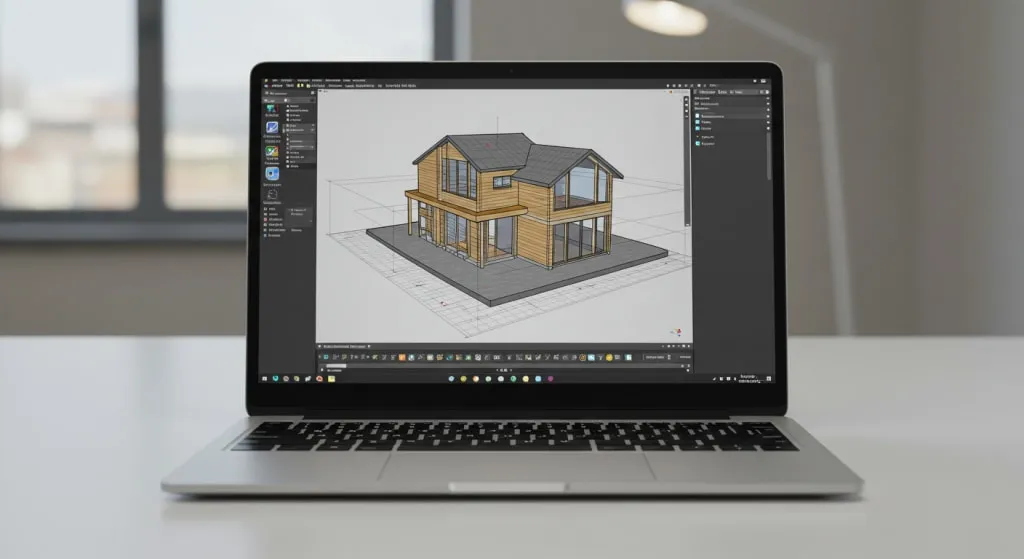
SketchUp ships with single-key shortcuts for its core tools, and most of them are worth learning in your first week: L for Line, R for Rectangle, P for Push/Pull, M for Move. For everything else, you can assign your own keys in Preferences. The steps are almost the same on Windows and Mac.
The defaults below come from the official SketchUp Help Center. Tool behavior can differ slightly between versions, so check the help page for any tool you rely on heavily.
Default shortcuts worth learning
You don’t need all of them. Start with the drawing and modification tools you use in every model, then add navigation and organization.
Selection and drawing
| Tool | Shortcut |
|---|---|
| Select | Spacebar |
| Lasso Select | Shift + Spacebar |
| Line | L |
| Rectangle | R |
| Circle | C |
| 2 Point Arc | A |
Modifying geometry
| Tool | Shortcut |
|---|---|
| Move | M |
| Push/Pull | P |
| Rotate | Q |
| Scale | S |
| Offset | F |
| Eraser | E |
| Paint Bucket | B |
| Tape Measure | T |
Navigation and organization
| Tool or command | Shortcut |
|---|---|
| Orbit | O, or click and drag with the middle mouse button |
| Pan | H, or Shift + middle-button drag |
| Zoom | Z, or the scroll wheel |
| Zoom Extents | Shift + Z |
| Make Component | G |
| Back Edges | K |
| Search for tools and commands | Shift + S |
The Select tool on Spacebar is the one that pays off most. You return to it constantly, and it’s the easiest way to stop whatever tool you’re in.
A few habits that make these stick
- Keep one hand on the keyboard and one on the mouse. Tap the key, then click in the model. Moving to the toolbar every time is what slows most beginners down.
- Use the scroll wheel and middle button for navigation. You’ll orbit, pan and zoom hundreds of times per model, so the mouse is faster than the keys. The keys are a fallback if you’re on a trackpad.
- Learn modifier keys per tool, not in general. Modifiers change meaning between tools. With the Eraser, for example, Shift hides edges while Ctrl (Option on Mac) softens and smooths them. Read the Help page for each tool before you rely on a modifier.
- Use Search as a safety net. Shift + S lets you type the name of a tool or command and run it, which is handy for things you use rarely and don’t want to give a shortcut.
How to set your own shortcuts
SketchUp lets you assign keys to any tool or command in the Shortcuts section of Preferences, including ones that have no default key. The panel lists every command you can assign.
On Windows
- Choose Window > Preferences and select Shortcuts.
- Type part of the command name into the filter box. For example, typing “make” finds Edit/Make Group. Typing “zoom” narrows the list to the Camera zoom commands.
- Select the command in the Function list.
- Click into the Add Shortcut field and press the key combination you want.
- Click the + button to confirm. The new key appears under Assigned.
- Click OK to close Preferences.
On Mac
- Choose SketchUp > Settings and select Shortcuts.
- Use the search field to find the command.
- Select the command so it’s highlighted.
- Click the text box in the lower-left of the panel and press the key combination you want.
- Confirm the assignment. The shortcut shows in the Key column.
On both platforms the panel offers a Reset All button that restores the defaults, so experimenting is low-risk.
Rules and limits
- Shortcuts can’t start with a number. Numbers are reserved for specific commands and for typing values into the Measurements box.
- You can add modifiers. Shift, Alt and Ctrl can be combined with other keys.
- You can’t use keys your operating system reserves. SketchUp warns you if your choice clashes with one.
- Don’t press Enter to confirm. It clears the field. Use the + button instead.
- Conflicts are your call. If a key is already assigned, SketchUp asks whether to keep the original or replace it.
Which shortcuts to add
Defaults cover the main tools. Consider assigning keys to commands you reach through menus several times an hour, such as:
- Edit > Make Group, if you group more often than you make components.
- Camera > Zoom Window or other Camera commands you use.
- Edit > Hide and Unhide items.
- Tools from your extensions, which usually appear in the same Shortcuts list once installed.
Choose letters that are close to your left hand and easy to remember, and avoid reassigning defaults unless you have a clear reason. If you share a computer or follow video tutorials, changed defaults will confuse you.
Moving your shortcuts between computers
On Windows, the Help Center describes a way to import and export your shortcut preferences, which is useful if you work on a desktop and a laptop. The official Help article covers the steps. The Help Center marks this as a Windows-only feature, so Mac users should set up each machine by hand.
Common mistakes
- A shortcut does nothing. SketchUp needs focus in the modeling window. Click once in empty space, then try again. If you were typing in a field such as the Measurements box, the key goes there instead.
- Letters appear in the Measurements box. You started typing a value while a tool wanted a number. Press Esc and begin again.
- A custom shortcut stopped working after reinstalling. Preferences may have reset. Reassign it, or import a saved shortcut file on Windows.
- Shortcuts differ in SketchUp for Web. The web version has its own shortcut page in the Help Center, so don’t assume the desktop list applies exactly.
FAQ
What are the most useful SketchUp keyboard shortcuts?
Spacebar (Select), L (Line), R (Rectangle), P (Push/Pull), M (Move), E (Eraser) and Shift + Z (Zoom Extents) cover most day-to-day modeling.
How do I change a keyboard shortcut in SketchUp?
Open Window > Preferences > Shortcuts on Windows, or SketchUp > Settings > Shortcuts on Mac. Select the command, type the new key combination, and confirm it. On Windows you confirm with the + button.
Why won’t SketchUp accept my shortcut?
It most likely starts with a number, or your operating system reserves it. Add a modifier such as Shift or Ctrl, or pick a different key.
Can I reset SketchUp shortcuts to default?
Yes. Use Reset All in the Shortcuts section of Preferences to restore the default assignments. This removes your custom keys, so export them first on Windows if you want a backup.